

A member visits your website to pay a bill. Someone moving into your service territory needs to start service. During an outage, a family wants to know where to find updates.
Each person arrives with a task in mind. Your website’s navigation should make the next step easy to recognize.
For electric cooperatives, planning navigation starts with understanding what members need—and organizing information around those needs. Here are six ways to put that approach into practice.
1. Start with member questions
Before rearranging your menu, list the questions your website needs to answer:
- How do I pay my bill?
- Where do I report an outage?
- How do I start or stop service?
- What payment assistance is available?
- Does my co-op offer rebates?
Your member services team can help identify recurring questions and confusing topics. Website analytics, search terms, and member feedback can add context.
Consider urgency alongside frequency. Outage reporting and safety information may deserve prominent placement even when other pages receive more visits.
Use these member needs to guide which destinations receive the most visibility.
2. Choose labels members can recognize
Your staff knows your departments, program names, and internal terminology. Members may approach the same information with a different vocabulary.
For example, “Start Service” gives a prospective member a clear action. A label such as “Member Services” covers a broader range of possibilities and may require another decision before they find the right page.
Program names can still appear on your website. Pair unfamiliar names with a plain-language explanation so people understand what the program offers.
As you review each label, ask: Could someone unfamiliar with our co-op reasonably predict what they will find here?
3. Give every navigation area a purpose
Your main menu is one part of your website’s navigation. Header shortcuts, homepage links, links within page content, and the footer also help people reach information. The organization underneath those links is your information architecture: how content is grouped, named, and connected.
For a co-op website, you might use:
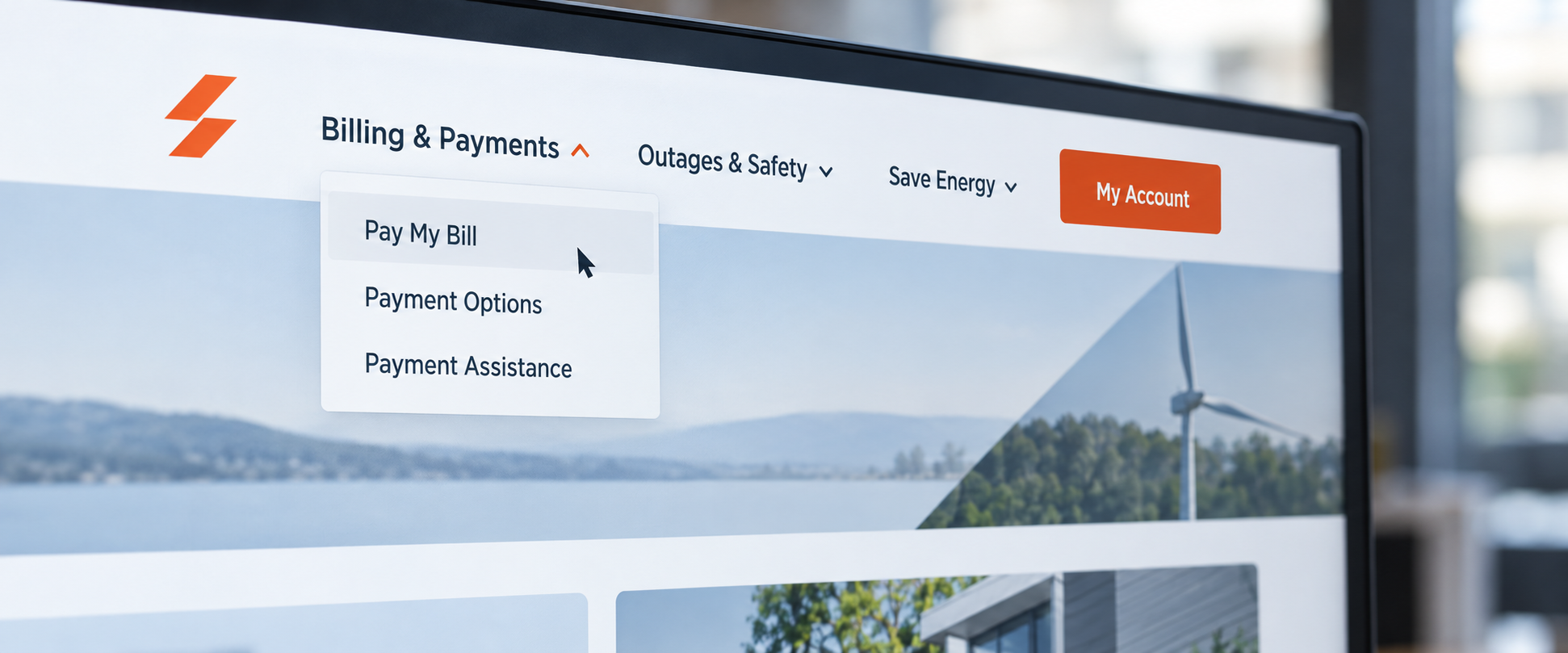
- Main menu: Major sections such as Billing & Payments, Outages & Safety, and Save Energy.
- Header shortcuts: Priority destinations such as Pay Bill and Account Login.
- Homepage quick links: Common tasks such as Start Service or View Outage Map.
- Links within content: Relevant next steps, such as a link to payment assistance from a billing FAQ.
- Footer: Supporting destinations such as contact information, careers, and policies.
These are examples to adapt to your members’ needs. Reviewing each area separately helps you decide where a link will be most useful.
4. Create several useful paths to one destination
A member looking for rebates might start in your main menu, follow a homepage promotion, or read an article about reducing energy use.
All three routes can lead to the same rebate page.
Keeping one maintained destination makes updates easier while allowing members to approach information from different starting points. When eligibility requirements change, your team can update the central page instead of tracking down several versions.
Before creating a new page, check whether an existing page already serves the need. Sometimes the missing piece is a helpful link.
5. Review the experience on a phone
Open your website on a phone and try completing a few common tasks. Can you find the payment portal? Is outage information easy to reach? Do menu labels remain readable?
Also review accessibility. Clear, consistent navigation, visible keyboard focus, meaningful headings, and layouts that work at different screen sizes help more people use your website. These are among the design considerations outlined by the World Wide Web Consortium’s Web Accessibility Initiative.
For members using slower connections, consider whether essential instructions are readily available as page text. Ask your web team to review unnecessary downloads or large media that may make important information harder to reach.
6. Watch someone try it
Choose a few realistic tasks and ask someone unfamiliar with your website’s organization to attempt them.
For example: “You’re moving into our service territory. Show me where you would begin.”
Avoid naming the menu item you expect them to choose. Watch where they start, what they hesitate over, and whether the destination answers their question.
Their choices can reveal labels or groupings worth revisiting. After making a change, try the task again.
Start with one member journey
You can begin with a single task: paying a bill, starting service, or finding outage information.
Review the labels, the available paths, and the destination page. Confirm that the information is current and that someone is responsible for maintaining it.
Each clear path helps your website serve its purpose: connecting members with the information and services they need.
Read more articles
- Log in to post comments